Why won’t Radar Display be on the Mac App Store?
Radar Display gives you control over your screens using macOS capabilities that Apple does not permit in App Store apps. Offering it directly lets us include features like disconnecting a monitor without unplugging. You’ll be able to download it here from Tomita Tech.
How do I share a monitor with another device?
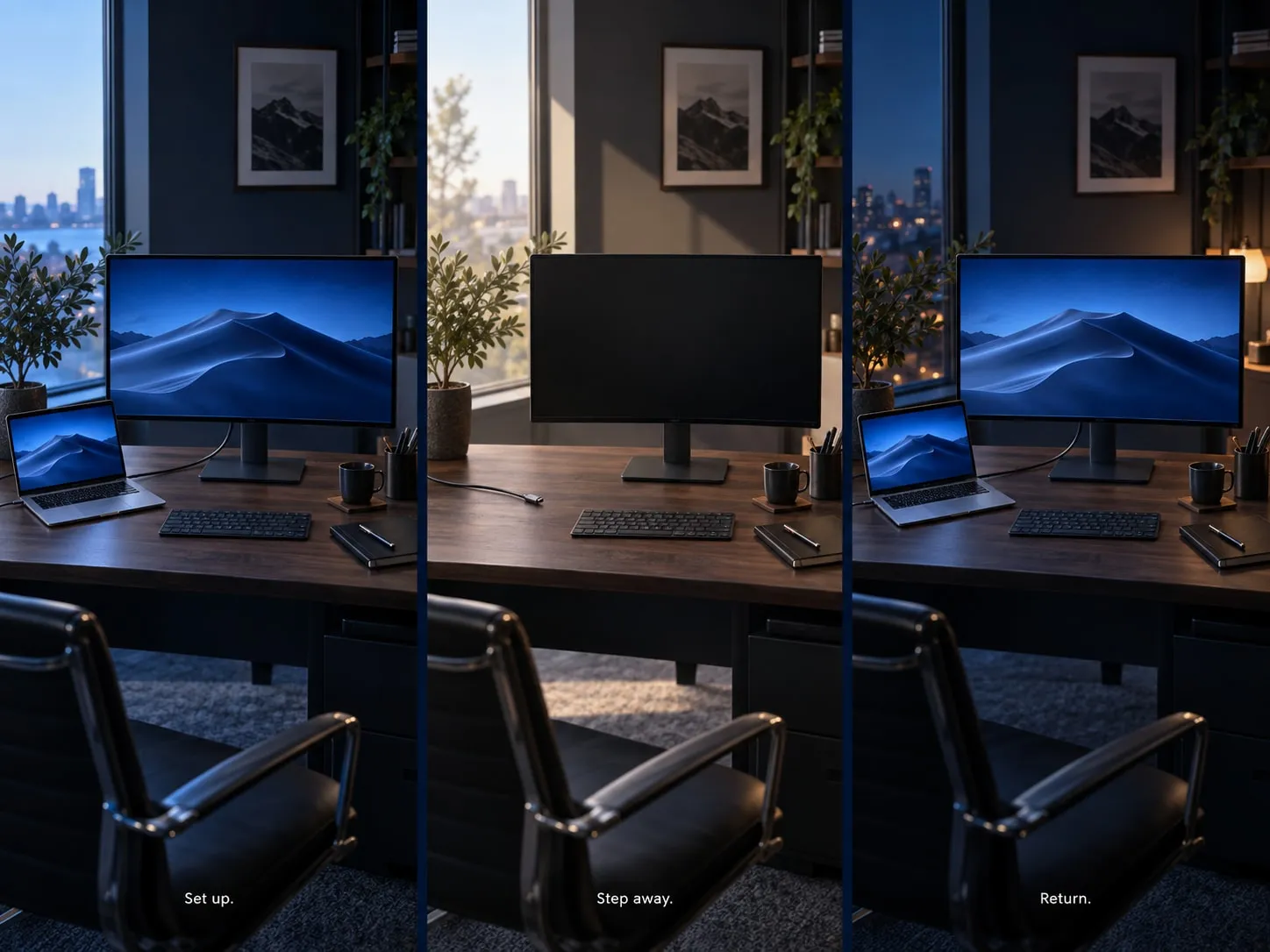
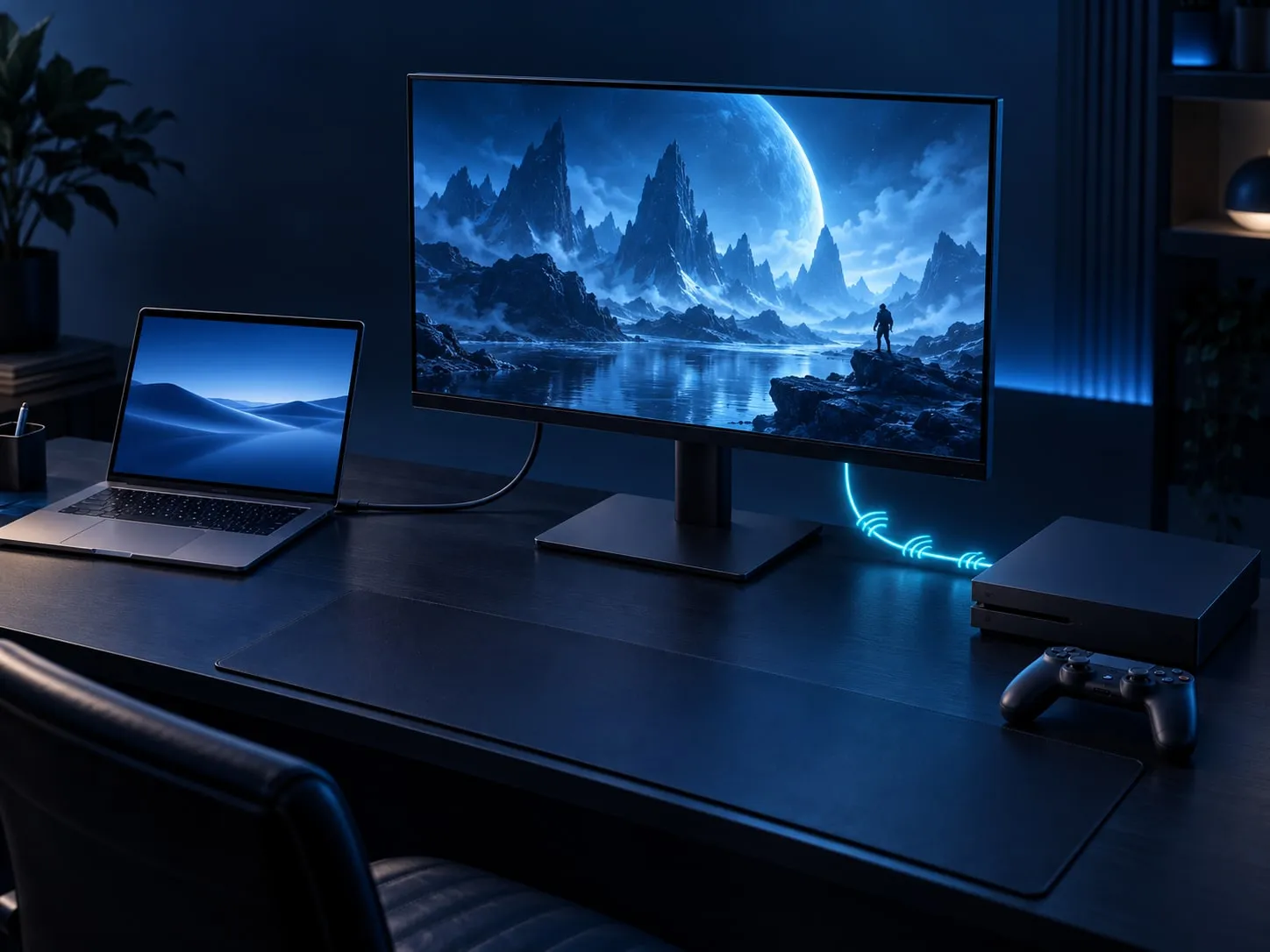
Disconnect the monitor in Radar Display, then select your console or other computer using the monitor’s input controls. To return, reconnect in Radar Display and select the Mac’s input. Radar Display manages the Mac’s display connection; input selection uses the monitor’s controls or its automatic input switching. The cable stays plugged in.
Which Macs and displays does it support?
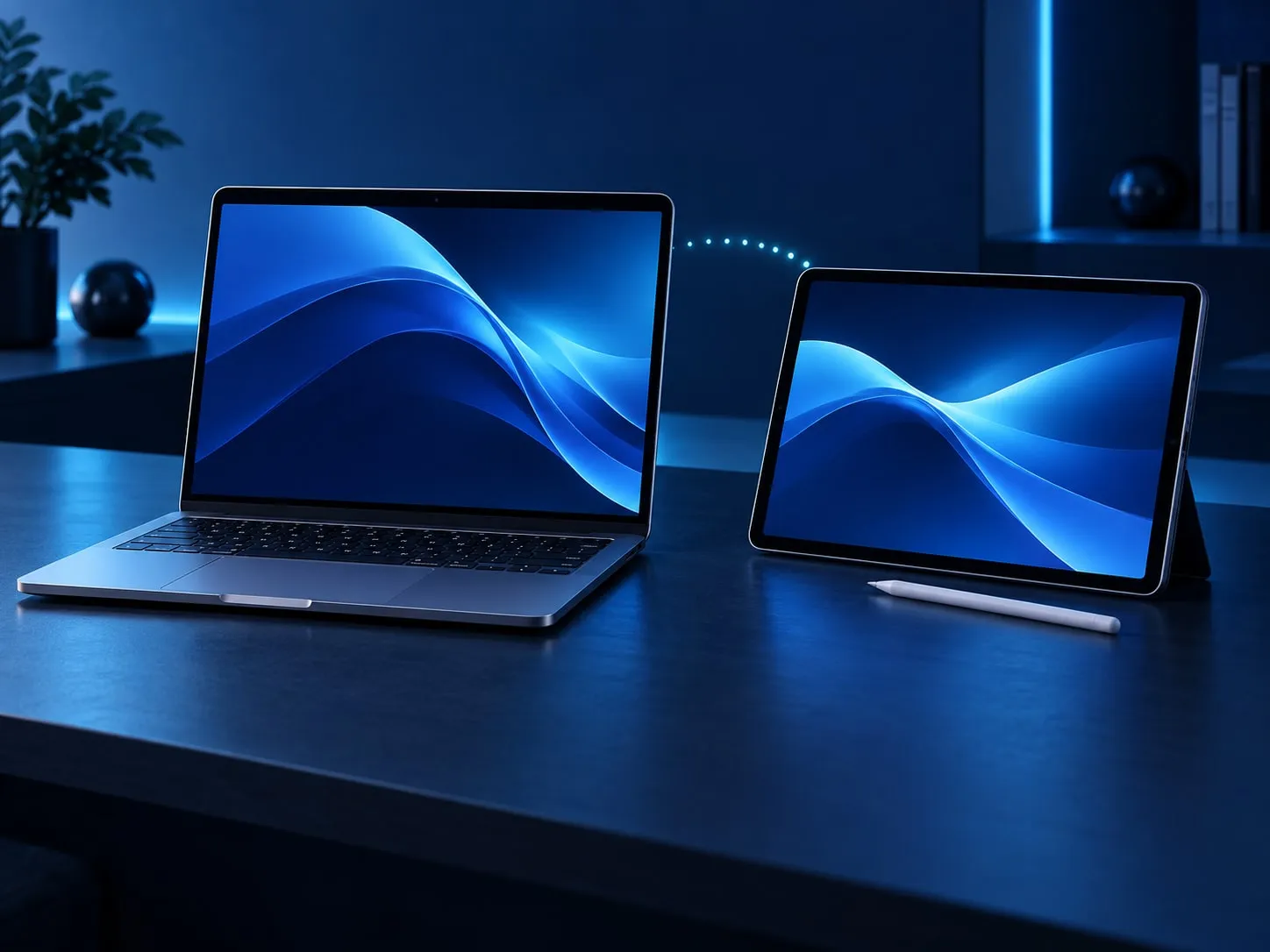
Radar Display is designed for Apple Silicon Macs running macOS 26 or later. It manages the built-in display and directly attached physical monitors, plus compatible iPads through Sidecar. AirPlay displays and other virtual displays are excluded.
Will every monitor have the same controls?
No. Available settings depend on the display and connection. Radar Display shows a control only when it can read and change that setting on the current display.
Which settings does Radar remember?
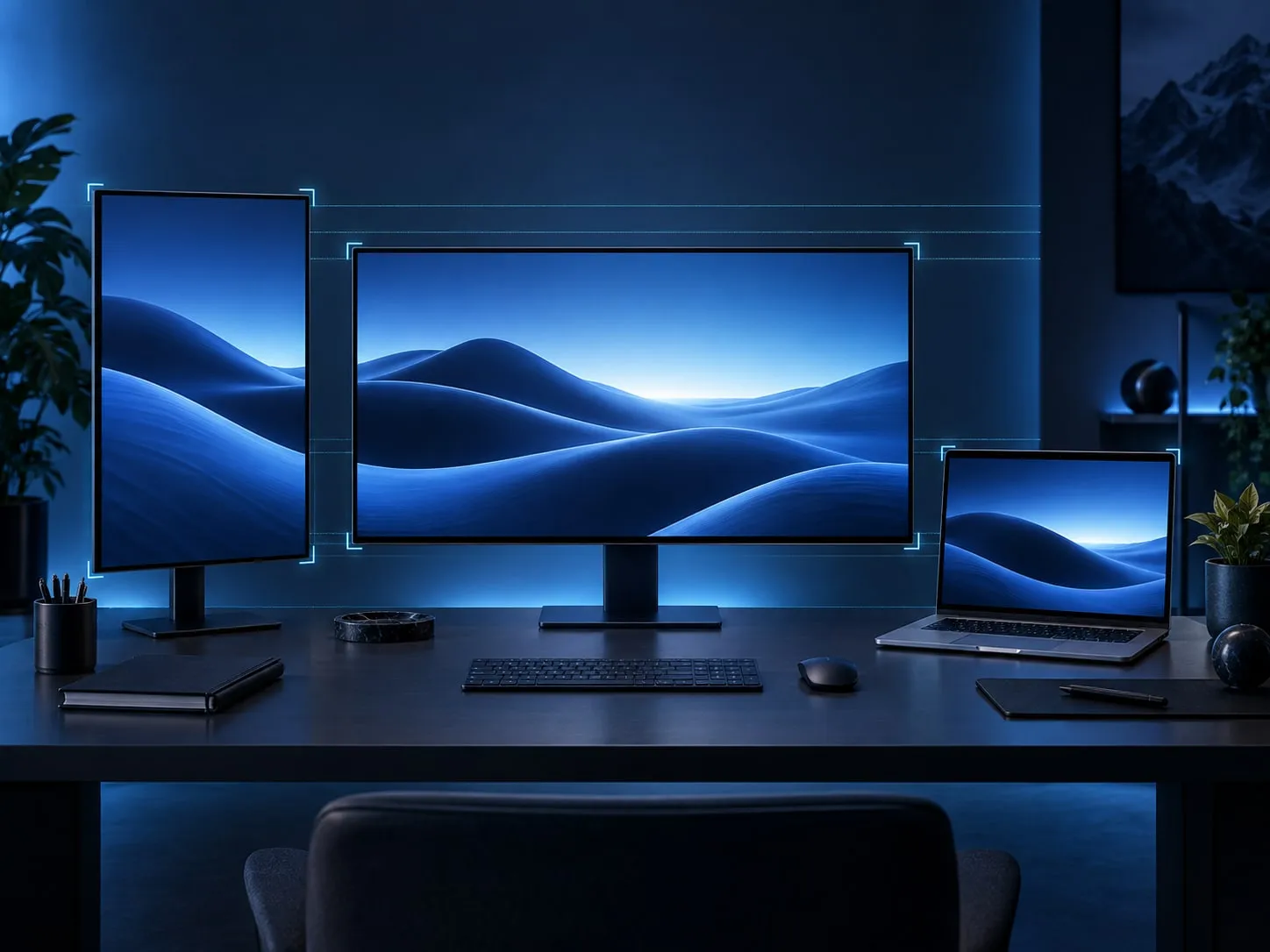
For physical displays, Radar remembers resolution, scaling, refresh rate, rotation, HDR, and color profile, restoring them when the display and connection still support the saved choice. Saved relative positions also apply to Sidecar displays. Automatic settings restoration does not include brightness, automatic brightness, True Tone, reference presets, main display selection, or mirroring.
Can I turn off my MacBook’s built-in screen?
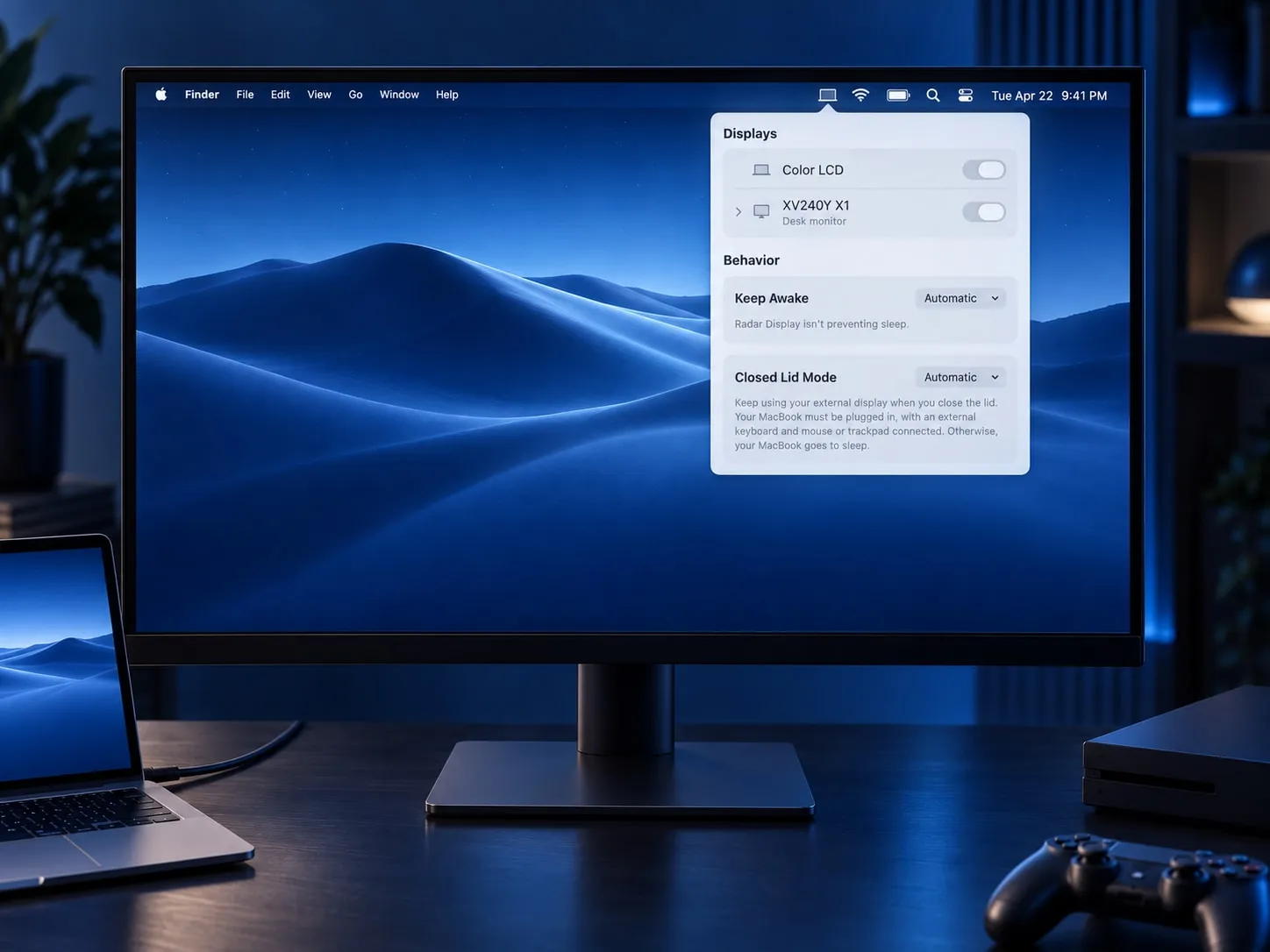
Yes, while another physical screen is active. Manual connection changes are guarded so you cannot disconnect the last active physical display. A Sidecar iPad does not count toward that guard. Closed Lid Mode has its own behavior: Screens off keeps the built-in screen and attached physical monitors dark, but does not end Sidecar sessions.
What do I need to use my MacBook with the lid closed?
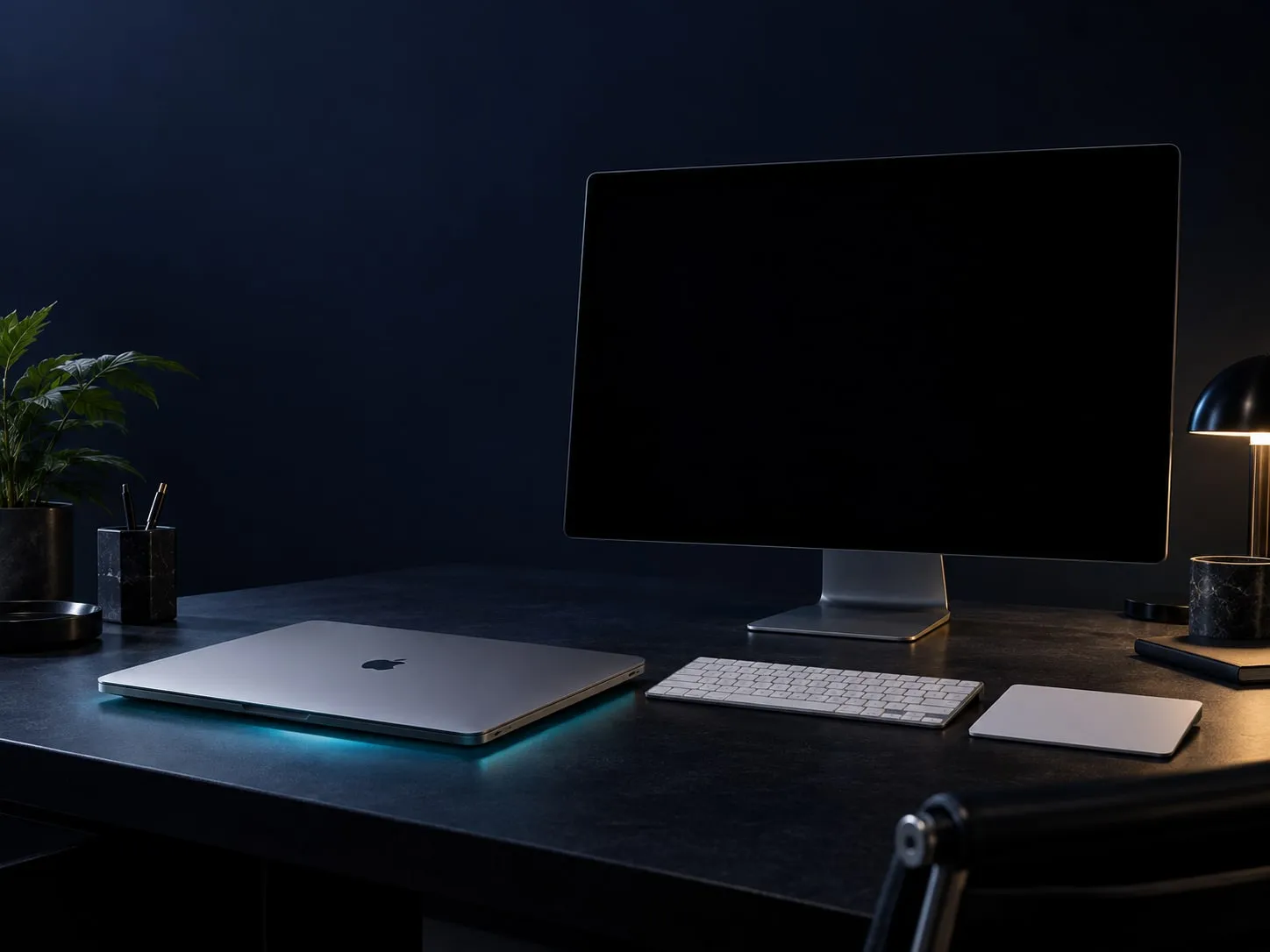
To use an external monitor, connect an external keyboard and mouse or trackpad. Automatic mode also requires power; otherwise, your MacBook sleeps. Stay awake works on power or battery. In Screens off and Sleep modes, open the lid to bring the screens back; keyboard and mouse activity won’t.
Does it need extra permissions?
Stay awake and Screens off in Closed Lid Mode require an optional helper that you approve in System Settings. The app shows when approval is needed. These modes prevent automatic system sleep even with the lid open and continue using power, including on battery. Ordinary Always and Timed Keep Awake sessions do not require the helper.
What happens when a timer ends or the battery reaches the cutoff?
When a Timed session ends, Radar Display releases that session’s sleep prevention. It does not force the Mac to sleep, and an active Closed Lid Mode override can still keep it awake. Battery cutoff works only in Timed mode while running on battery: it ends the session and pauses Radar Display’s sleep prevention, including the closed-lid override. Connecting power does not restart it. Resume clears the pause when power conditions allow; start a new session for another timer.
What happens if I quit the app?
On normal quit, Radar Display attempts to reconnect the displays it disconnected that are still attached. A force quit cannot run that cleanup; relaunch the app and reconnect the display if needed. Reconnecting can briefly pause the desktop while macOS rearranges its screens.